Search in Case IQ
Case IQ offers three ways to find records in the system: quick, advanced, and grid search. This article explains where to find each search option, when to use them, and how to get the best results.
| Search type | Best for... | What it searches | For best results... | Use it when... |
|---|---|---|---|---|
| Quick search (also called "Global search") | Searching broadly across the system | All searchable records you have permissions to view. | Use a specific full word or phrase, then narrow by record tabs. | You know the keyword, but do not know which record type contains it. |
| Advanced search | Precise and structured searching. | All searchable records you have permissions to view. Results are narrowed down by text search options and field-based filters. | Choose the right text search option: “All These Words”, “Contains Exact Phrase”, or “Any of These Words”. Add filters only when necessary. | Quick search is too broad, or you need repeatable, saved criteria. |
| Grid search | Narrowing the current list of records. | Only records you have permissions to view in the current grid, limited by the grid's filters. | Set the grid filters first. Then, search a full word or phrase. | You are already in the cases, profiles, files, or another grid and want targeted results. |
Quick Search
Quick searches (or "global searches") are the best starting point when you are not sure where specific information lives. You can run a quick search from any page in the application, preview results, and jump to a matching record. However, because it searches so broadly, results can be noisy and less precise than advanced searches.
To run a quick search:
1. Click the Search box in the application's top bar.

2. Type a full word or phrase into the Search box.

3. You will now see a preview of the search results. Click one of the records to navigate to its page. To see all results, click the Search button ( ) or hit Enter on your keyboard.

4. On the search results page, use the tabs to see the results for each record type. Just like the search preview, you can click a record to navigate to its page.

5. If the results are too broad or there are too many matches, click the Search box again and click Advanced Search. See the next section in this article, Advanced Search, for instructions on running advanced searches.
Recent Searches
You can see and re-run your last five quick searches from the search menu. To run one of your recent searches:
1. Click the Search box in the application's top bar.
2. Your last five quick searches will be displayed in the search menu. Click a recent search to run it again. To see more of your previous quick searches, click the Recent Searches button.

3. On the Recent Searches page, you can click one of your previous quick searches to run it again.

Advanced Search
Advanced search is the most precise and repeatable option, allowing you to search for exact wording and create filter statements. You can also save your advanced searches, so you can build targeted searches for your recurring tasks. Saved searches are specific to your user account and cannot be shared with other users.
To run an advanced search:
1. Click the Search box in the application's top bar.
2. Click Advanced Search.

3. You will see the following text search options. Enter your key words or phrase in the text search option you want to use.
| Text Search Option | How it searches for matches | Recommended for | Results for the search phrase "Unfair Practices" |
|---|---|---|---|
| All These Words | Returns records containing all words entered, even if those words are spread across multiple fields. | Intent-based results |
Records where either a single field or multiple fields of the record includes the words “Unfair” and “Practices”. |
| Contains Exact Phrase | Returns records matching the exact phrase as it is entered. This option is not case sensitive. | Finding exact information | Records including the exact phrase “Unfair Practices” in a field. Records containing “Unfair” and “Practices” in a different order will not be included in results. |
| Any of these words | Returns records containing one or more of the words entered. | Broader discovery | Records with either the word “Unfair” or “Practices” in any field. |

4. If necessary, you can add filters in the "Narrow your search with filters" section to limit results by specific record types and field values. In the example below, we create a filter for cases open for less than a month.
To add search filters to your advanced search...
- Choose a record type in the "<Select>" dropdown. We chose "Case" for our example filter, as shown in the screenshot below.
- Select a field on that record type in the "Search fields..." dropdown. The field in our example is "Open Calendar Days".
- In the next dropdown, choose an operator, such as "contains", "is", or "is not". The operator tells Case IQ how to search for the keywords or values in the filter. We selected "Less Than or Equals" for this example.
- The options available in this dropdown depend on the type of data stored in the field. See the Criteria Operator Glossary for a full list of operators by field.
- Now, you can enter a field value using the input options at the right end of the filter. In our example, we entered "30" in the available text box.
- You will see different input options depending on the field type you chose earlier. For example, if you choose the “Confidential” field, you will see “Yes” and “No” radio buttons.
- To create another filter, click the Add Search Criteria button. Repeat steps 1 to 6 for the new filter.
- If you create multiple filters, use the "Any/All" toggle to set whether records must meet all or just one of the filters to be included in search results.
- By selecting “Any”, records only need to meet one of your filters.
- Choosing “All” means records must meet every filter.
- You have now created a filter. When you run your advanced search, only records that meet your filters will be included in the search results.

5. When you have finished entering your search key words and filters, click the Advanced Search button to see the results.

6. If you expect to reuse these search criteria, click the Save button.


Grid Search
Use grid searches when you already know the correct record type, as the search results will be limited to the grid's record type and filters. You can run a grid search from any record grid, such as the Cases grid. Case IQ will search all fields of that record type, including fields that are not currently displayed as columns. As with quick searches, enter the full word or phrase in the search box.

To run a grid search:
1. Go to the corresponding grid for the record type. You can navigate to a record grid by clicking the tabs in the application's left sidebar.

2. For the best results, we recommend setting filters for the grid before searching. In the screenshot below, we set the "Case Status" filter to "Open". See the Configure a Grid article for full instructions on adding and applying filters.

3. Click the grid's Search button and enter a full word or phrase. We entered "Jen" in the screenshot below.

4. Review the results. In the example below, the search results show all cases including the text “Jen” with an “Open” status. The search pulled cases where “Jen” is the case owner or the case creator.

- To open a record in a new tab, click the record number to go to its page.

- On the Case grid or Views page, you can also preview a case. Click the case's row to open the pinned fields panel. Administrators can configure the pinned fields for your application, see Manage Panel Views for details.

5. If the results are too broad or there are too many matches, you can add more filters or adjust the search keywords.
Which Search Gives the Best Results?
As a general rule of thumb:
- Start with a quick search (also called "global search") when you are unsure where to find the content.
- Move to advanced search when the first pass is too broad or needs filters.
- Use grid search when you are already on the correct grid and want the most focused results.
Common Examples
| Scenario | Recommended Search |
|---|---|
| I know the name or keyword, but I do not know where it is stored. | Use quick search. |
| I need all records with an exact phrase and a specific record type or filter. | Use advanced search. |
| I am on the Cases grid and want open cases related to “Jen”. | Filter the grid to “Open”, then use grid search for “Jen”. |
| I need a search I can run again later. | Create an advanced search and save it. |
Content Searching in Text Files
Case IQ can search for text in certain types of files when you run a quick or advanced search. If a document can be searched in Case IQ, it is called “content searchable”.
Documents that meet the following criteria will be content searchable:
- The file contains text, such as a Word, PDF, or .txt document. Images or sound clips are not content searchable.
- The file is under 15 MB.
- Files will remain content searchable for two years. After 2 years, you will still be able to search for and access such files from their case or the Files grid, but their content will no longer be searchable.
- The case has less than 1000 attached documents.
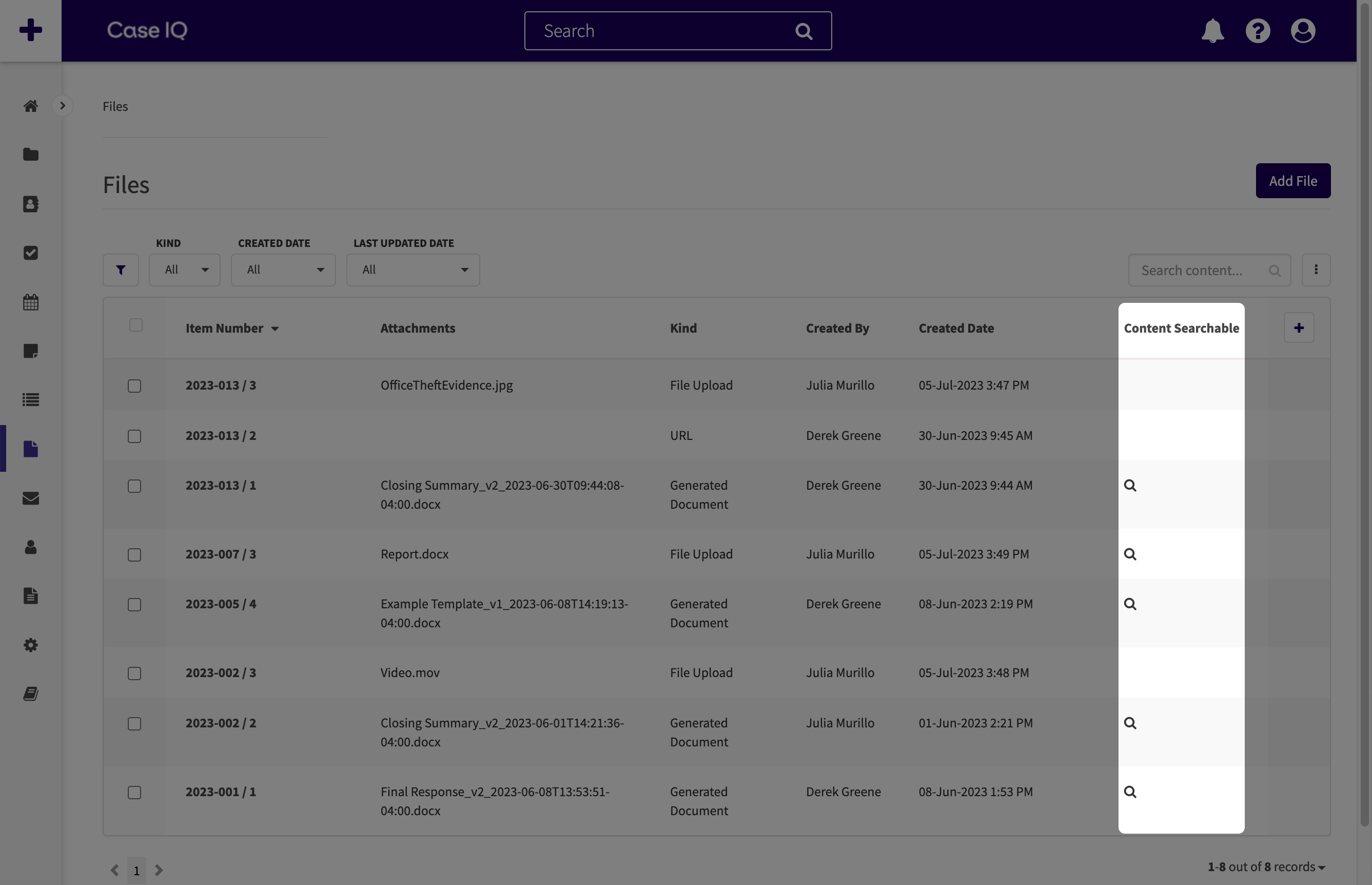
You can check if Case IQ can search through a file with the "Content Searchable" column on the Files grid. You will see a magnifying glass icon ( ) in the file's row if it is content searchable. If you do not see the "Content Searchable" column in your application, you can add it to your view from the grid's Column Menu (
 ) (see Configure a Grid: Add or Remove a Column for more).